Projects
A project is a folder you added; its sessions are the agent conversations that ran there.
Adding a project
The folder button beside Projects in the sidebar header, Add a project or group, opens a menu.
- Add Project…: pick any folder, even one no agent has run in.
- Import from Claude Code… / Import from Codex…: lists folders that agent has worked in, with session count and last activity. Tick (or Select all) and press Import. Already-added folders are marked in workspace.
Remove Project, at the bottom of a project's right-click menu, takes it off the sidebar and deletes nothing; adding it back restores its sessions. It asks first if a session is running.
Organising the sidebar
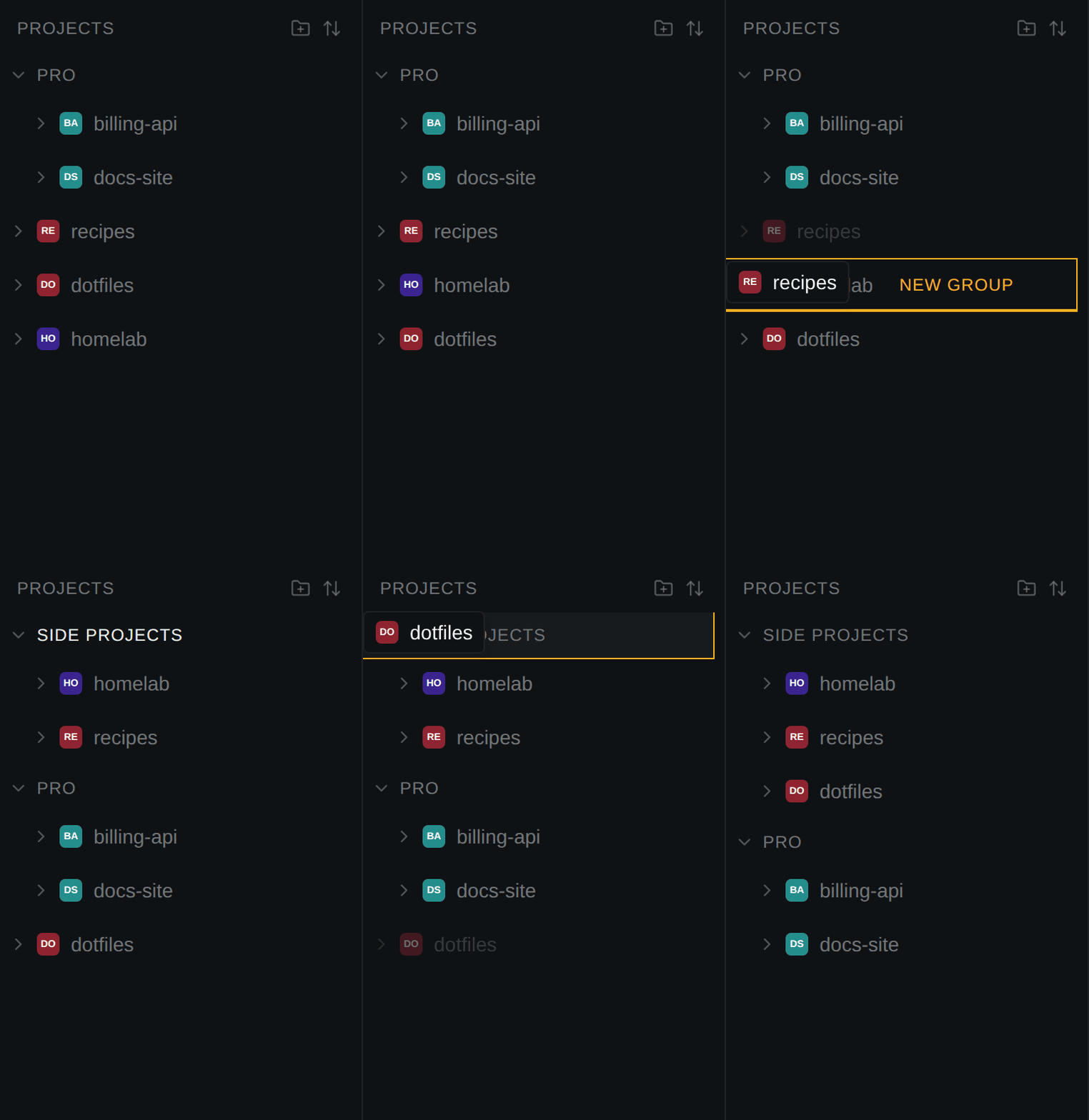
- Drag a row to reorder it, onto a group to file it, onto a group's edge to place it beside, or hold it over another project until it reads New group.
- Keyboard:
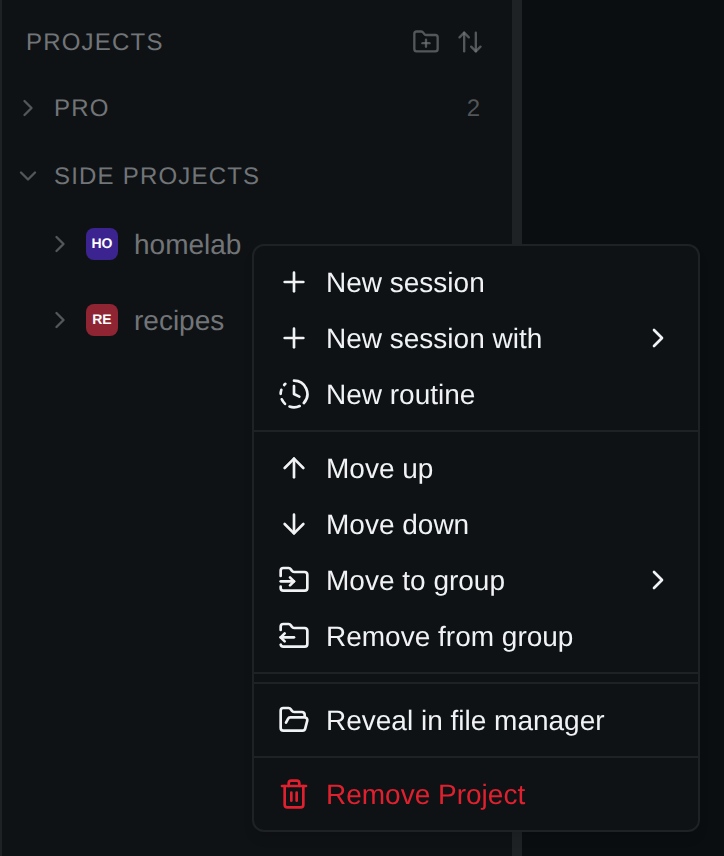
Alt+↑/Alt+↓move a row. - Right-click menu: Move up, Move down, Move to group (with New group…) and, inside a group, Remove from group.
Groups are named rows that hold projects and collapse to a count. Create one with New Group… in the header menu, or by holding one project over another. A group's right-click menu has Rename… and Remove Group (its projects return to the top level).
Sort and expand projects, in the sidebar header: Manual, Name, Recent, Expand all, Collapse all. Under Name and Recent, groups dissolve and dragging and the move items are off.
The sidebar resizes between 180 and 480px and collapses to a rail.
What a row shows
- An avatar coloured from the path, with a status dot when a session is live.
- A
+on hover to start a session, with a chevron to pick the agent when both are installed. - missing, dimmed, when the folder is gone: sessions stay readable, new ones cannot start.
An expanded project lists up to ten sessions (pinned, open, then recent) and an N more… link. Sub-agents appear only on the project page.
The right-click menu also has New session, New routine and Reveal in file manager.